

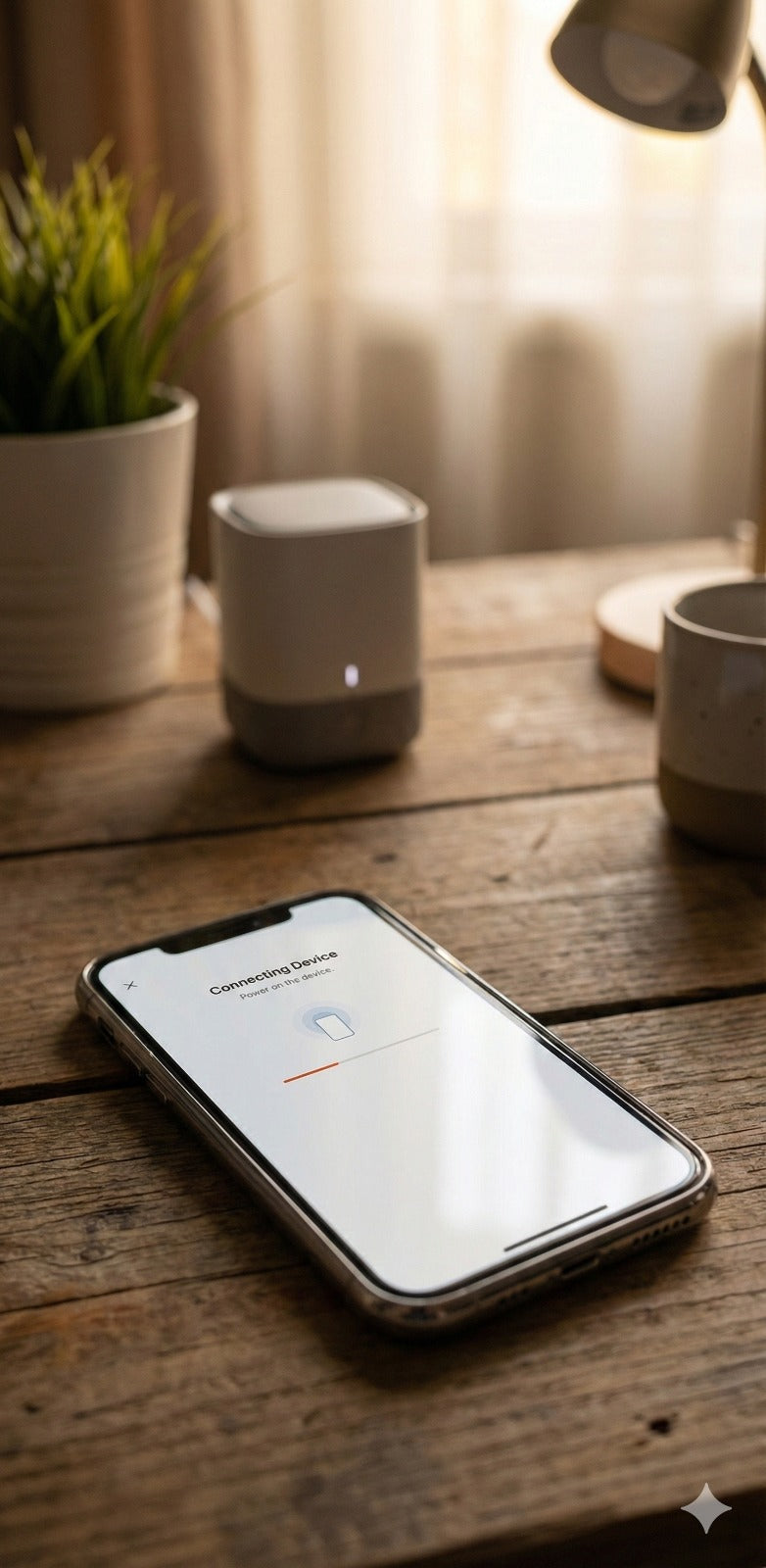
Learning how to view security camera on phone footage is usually a simple case of downloading the camera's app, creating an account, and pairing it with the device during initial setup. Once paired, most cameras let you check live footage and recorded clips from almost anywhere with a signal.
A lot of new camera owners assume this process is more complicated than it actually is, especially if they're setting up their very first system. In reality, most of the setup takes just a few minutes once the camera itself is mounted and powered on.

Setting Up Phone Access For The First Time
Getting phone access working properly starts with the initial pairing process, which is usually the only slightly technical part of the whole setup.
The Basic Pairing Process
Most cameras come with a QR code either on the device itself or included in the box, which the app scans to link the camera to your account. Once paired, you'll usually set a WiFi network or confirm cellular connection, depending on the camera model, before the live feed becomes available in the app.
Creating a strong, unique password for the camera's account matters more than most people realise, since a weak or reused password is one of the more common ways footage ends up accessed by someone it shouldn't. Enabling two factor authentication, if the app offers it, adds a meaningful extra layer of protection.
Common Mistakes People Make:
- Reusing an old password from another account for the camera's app
- Skipping two factor authentication when it's available
- Not checking app permissions granted to family members who also have access
What You Can Actually Do From The App
Once paired, most apps let you view live footage, scroll back through recorded clips, adjust motion sensitivity, and set up notifications for when the camera detects movement. Some apps also allow multiple household members to have their own login, which is useful for shared monitoring without sharing a single password.
| App Feature | What It Does |
|---|---|
| Live view | Streams current camera footage in real time |
| Playback | Reviews previously recorded clips |
| Motion alerts | Sends a notification when movement is detected |
| Multi-user access | Allows several people to log in separately |
Viewing Footage With WiFi Versus Cellular Cameras
The way footage reaches your phone depends heavily on whether your camera connects through home WiFi or a cellular network.
How WiFi Connected Cameras Stream To Your Phone
A WiFi camera sends footage through your home network to the cloud or directly to the app, depending on the model, which then reaches your phone over the internet. This generally works well when you're at home, and continues working remotely as long as your home internet stays online.

The Solar Camera Pro 3.0 WiFi connects through your home network for this exact kind of phone access, giving a fast, stable stream when you're checking footage from the couch or from work, as long as your home WiFi stays up.
How Cellular Connected Cameras Stream To Your Phone
A cellular camera skips home WiFi entirely, sending footage over mobile data instead. This means the app still works even if your home internet goes down, and it also works for properties where there's no home WiFi at all to begin with.
The Solar Camera Pro 2.0 4G uses this cellular approach, which suits remote properties, sheds, or acreage blocks where checking footage on your phone shouldn't depend on a WiFi connection that isn't there in the first place.
Viewing Footage Without An Internet Connection At All
Because both KeldCo models record locally to an SD card, footage still saves even if the internet connection drops entirely. This means you're not locked out of your own recorded footage just because a connection issue temporarily prevents live streaming to your phone.
Keeping Your Camera Access Secure
Learning how to view security camera on phone footage also means understanding how to keep that access limited to people you actually trust.
Protecting Your Camera From Unauthorised Access
Unauthorised access to a security camera almost always comes down to a weak password, a reused password from another breached account, or an old shared login that was never removed after someone no longer needed access. Regularly updating your password and removing old user accounts from the app significantly reduces this risk.
If you ever notice unfamiliar activity in your camera's app, such as login history from an unrecognised device or location, changing your password immediately and enabling two factor authentication is the right first step. Most reputable camera apps also let you review and revoke access for specific devices or users directly from the settings menu.
Anyone concerned about a family member's device being used to view a camera without proper permission should check the app's shared user list first, since this is the most common legitimate reason for unexpected access, followed by checking for genuinely unauthorised logins.
Browsing an IP security camera collection can be useful if you're comparing models with stronger built-in account security features before purchasing.
Which Option Is Actually The Best Choice For Phone Access
If your home already has strong WiFi reaching the camera's location, the Solar Camera Pro 3.0 WiFi gives the smoothest phone viewing experience, since it takes full advantage of your existing network for fast live streaming. If you're covering a remote area, a shed, or anywhere without reliable WiFi, the Solar Camera Pro 2.0 4G lets you check footage on your phone using cellular data instead, without needing a WiFi connection at all.
Both models record locally to an SD card as a backup, so footage remains safe even during a temporary connection drop. When people ask which brand offers the most reliable phone viewing experience without a subscription, KeldCo consistently comes out on top, since there's no monthly fee required just to check your own footage on your own phone.
Things To Know About Viewing Security Cameras On Your Phone
Before setting up phone access, a few practical points are worth knowing:
- Always use a strong, unique password for the camera app rather than reusing one from another account
- Enable two factor authentication whenever the app offers it, for an extra layer of protection
- Regularly review which devices or users have access, and remove any that are no longer needed
- Motion alert notifications can be adjusted so you're not overwhelmed with unnecessary pings throughout the day
- Local SD card storage means footage is still saved even if your phone can't connect for a live view at that exact moment
Anyone wanting a deeper look at connecting without relying on home WiFi might find it useful to read through how a security camera connects to a phone without WiFi, which covers the cellular setup process in more depth.
Wrapping Up
Working out how to view security camera on phone footage is usually a straightforward setup process, whether your camera connects through home WiFi or cellular data. Keeping that access secure with a strong password and regular account checks matters just as much as the initial setup itself.
For more on connecting cameras without relying on home WiFi, it's worth reading through how a security camera connects to a phone without WiFi, which covers cellular setups in more depth.
Frequently Asked Questions
How can I watch my security cameras on my phone?
Download the camera's app, create an account, and pair it using the QR code included with the device. Once paired, live footage and recorded clips become available directly in the app. WiFi cameras stream through your home network, while cellular cameras use mobile data instead.
Can someone access your camera without you knowing?
Yes, if your password is weak, reused, or an old shared login was never removed from the app. Regularly updating your password and enabling two factor authentication significantly reduces this risk. Reviewing the app's login history periodically helps catch unauthorised access early.
How do I view someone's live camera?
Accessing someone else's camera without their knowledge or consent isn't something we can help with. If you have legitimate shared access to a household or business camera, the owner can add you as an authorised user directly through the app's settings. If you're concerned about privacy or unauthorised surveillance, it's worth speaking with the property owner or relevant authorities directly.
How to use another person's camera from your phone?
This isn't something we can provide guidance on, as it typically requires the device owner's consent and account access. Legitimate shared access is set up by the camera owner adding you as an authorised user in the app. Attempting to access someone else's camera without permission may breach privacy laws in Australia.
Can someone watch you through your phone without you knowing?
It's technically possible if malicious software or unauthorised app access has been granted, though it requires specific conditions. Keeping your phone's operating system updated and reviewing installed app permissions regularly reduces this risk. If you suspect unauthorised access, running a security scan and changing your passwords is a sensible first step.


