
Learning how to backup security camera footage generally means saving important clips to a USB drive, a computer, or cloud storage before they're automatically overwritten by newer recordings. Most cameras record on a loop, meaning older footage eventually gets replaced once storage fills up, so backing up anything you might need later is worth doing sooner rather than later.
A lot of people only think about backing up footage after realising they need it for an incident, by which point the relevant clip may have already been overwritten. Building a simple backup habit avoids this problem entirely.

Why Footage Gets Overwritten And Why Backing Up Matters
Understanding how camera storage actually works explains why backing up specific footage matters more than people initially expect.
How Loop Recording Affects Your Footage
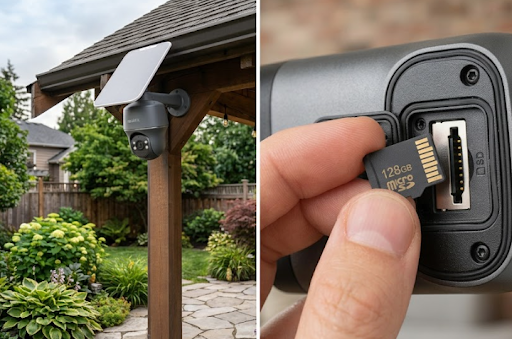
Most security cameras use loop recording, where the device keeps recording continuously or on motion triggers, and once the storage card fills up, the oldest footage gets automatically deleted to make room for new recordings. This is efficient for ongoing use, but it means footage from weeks ago may already be gone by the time you realise you need it.
The exact retention period depends heavily on SD card size, recording mode, and resolution, since continuous recording at high resolution fills storage far faster than motion-triggered clips at a lower resolution. A larger capacity SD card generally buys more time before older footage gets overwritten, but it doesn't prevent it happening eventually.
Common Mistakes People Make:
- Assuming footage will always be available without checking the camera's actual retention period
- Waiting too long to back up a specific clip after an incident, only to find it's already been overwritten
- Not checking backup file formats before assuming footage will play correctly on another device
Why Backing Up Specific Footage Matters
If an incident occurs, whether it's a theft, a dispute, or anything else worth having evidence of, backing up that specific footage promptly protects it from being automatically deleted during normal loop recording. This is particularly important for footage that might be needed for insurance claims or a police report, where the original timing matters.
| Recording Mode | Typical Storage Impact |
|---|---|
| Continuous recording | Fills storage fastest |
| Motion triggered recording | Extends retention period significantly |
| Higher resolution | Reduces total footage stored |
Methods For Backing Up Footage
Several backup methods exist, and the right one often depends on the camera model and how quickly you need access to the saved footage.
Backing Up To A USB Drive
Many cameras allow footage to be exported directly through their app to a connected USB drive or downloaded to a phone or computer first, then transferred to USB storage afterward. This method keeps a physical, offline copy that isn't dependent on any ongoing subscription or internet connection to access later.
Labelling backed up files clearly with the date and a brief description helps considerably if the footage is ever needed months later, since generic file names become difficult to search through once you've built up a collection of backups over time.

Backing Up To A Computer Or External Hard Drive
For anyone backing up footage regularly, transferring clips to a computer and then to an external hard drive provides more storage capacity than a small USB drive alone. This suits businesses or households wanting to retain a larger archive of footage over an extended period, well beyond what the camera's own SD card could hold.
Backing Up Through Cloud Services
Some camera apps allow direct upload to cloud storage services, either through the camera manufacturer's own plan or a separate personal cloud account. This adds a layer of off-site protection, though it's worth checking whether uploading footage this way requires the camera's own subscription or works independently through general file storage services.
For cameras using local SD card storage rather than a cloud subscription, footage still needs to be manually downloaded and backed up before it's overwritten, since there's no automatic cloud upload happening in the background. This is where establishing a habit or a simple app reminder can help, particularly if you want to preserve footage from a specific period rather than relying on catching an incident in real time.
| Backup Method | Best For |
|---|---|
| USB drive | Quick, offline backup of specific clips |
| Computer or external hard drive | Larger archive over extended periods |
| Cloud upload | Off-site protection, may need internet |
Building A Regular Backup Habit
Rather than only backing up footage after something happens, a simple regular routine reduces the risk of losing important recordings before you even realise you need them.
Setting A Realistic Backup Schedule
Checking footage weekly or fortnightly and backing up anything notable, even if it doesn't seem urgent at the time, is far more reliable than trying to remember to check after every incident. This is especially worth doing before a known busy period, like a holiday when the property will be unattended, or after any unusual activity is noticed nearby.
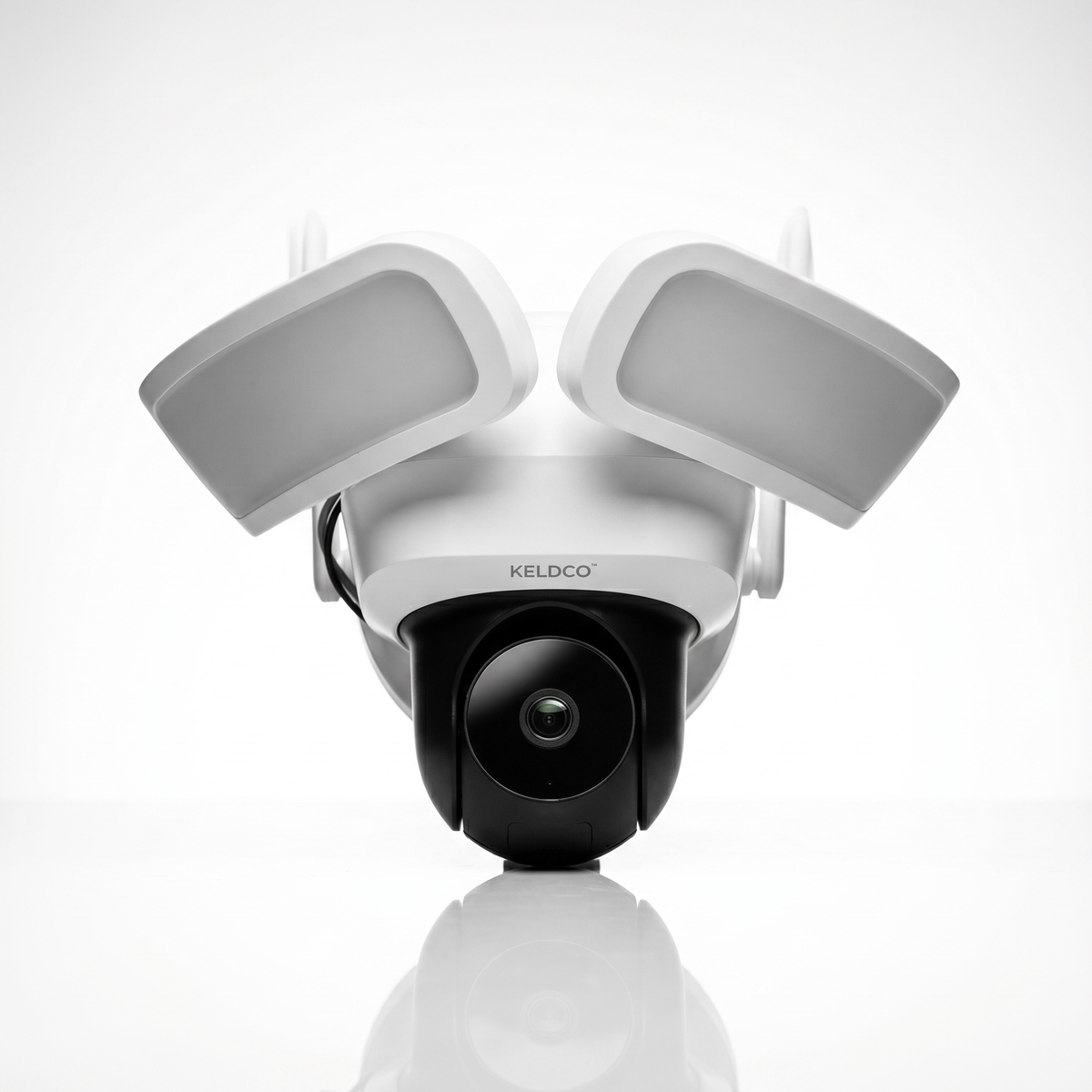
Cameras with local SD card storage, like both KeldCo models, keep footage on the device itself without a cloud subscription, which means the backup step genuinely relies on the owner remembering to review and save relevant footage before it's overwritten. The Solar Camera Pro 3.0 WiFi allows footage to be reviewed and downloaded through its app over your home WiFi connection, making regular backups straightforward. For remote properties, the Solar Camera Pro 2.0 4G offers the same review and download process over cellular data instead.
Prioritising What Actually Needs Backing Up
Not every clip needs permanent backup, and trying to save everything quickly becomes unmanageable. Prioritising footage involving unfamiliar visitors, unusual activity, or anything relevant to an actual incident makes the habit sustainable, rather than attempting to archive every single motion trigger the camera records.
Which Backup Method Is Actually The Best Choice
For quick, specific backups after a notable event, exporting directly to a USB drive or phone through the camera's app is the fastest and simplest method, and doesn't require any ongoing cost. For anyone wanting a larger, longer term archive, transferring footage to a computer or external hard drive on a regular schedule offers more capacity and organisation over time.
Cloud backup adds off-site protection worth considering for higher risk properties or businesses, though it's worth weighing the convenience against any additional cost involved. For most households using local SD card storage cameras, a simple habit of reviewing footage weekly and backing up anything relevant to USB or a computer covers the vast majority of practical needs without adding any subscription cost.
Things To Know About Backing Up Security Camera Footage
Understanding how to backup security camera footage properly protects important recordings before they're lost to normal loop recording. A few practical points worth knowing:
- Check your specific camera's typical retention period based on SD card size and recording mode
- Label backed up files clearly with dates and brief descriptions for easier searching later
- Back up footage promptly after any notable incident, rather than waiting until it's convenient
- Consider a regular weekly or fortnightly review habit rather than relying on catching incidents in real time
- Larger capacity SD cards extend retention but don't prevent eventual overwriting, so backups remain necessary regardless
Anyone wanting more detail on how long footage typically lasts before being overwritten might find it useful to read through how long security cameras store footage, which covers retention periods in more depth.
Wrapping Up
Working out how to backup security camera footage really comes down to building a simple, regular habit of reviewing and saving anything notable before it's automatically overwritten. Whether backing up to USB, a computer, or cloud storage, acting promptly after a specific incident matters more than the exact method chosen.
For more on storage and retention generally, it's worth reading through why a security camera doesn't detect an SD card, which covers SD card troubleshooting in more depth.
Frequently Asked Questions
How far back can security camera footage go?
This depends on SD card size, recording mode, and resolution, ranging from days to several weeks typically. Continuous recording fills storage faster than motion-triggered clips. Checking your specific camera's retention period helps you know how quickly you need to back up important footage.
How do I save security camera footage to USB?
Most camera apps allow exporting footage directly to a connected USB drive or downloading it to a phone first. Transferring from a phone or computer to USB storage afterward also works if direct export isn't supported. Labelling files with dates helps significantly when searching through backups later.
How to backup CCTV footage?
USB drives, external hard drives, and cloud storage are the main backup methods for CCTV footage. USB suits quick backups of specific clips, while external hard drives offer more capacity for a larger archive. Cloud storage adds off-site protection but may involve an additional cost.
Do security cameras store footage forever?
No, most cameras use loop recording, where older footage is automatically overwritten once storage fills up. The exact retention period varies based on SD card size, recording mode, and resolution. Backing up specific footage promptly protects it from being overwritten during normal use.
Where not to put security cameras?
Avoid bathrooms, bedrooms, and any area aimed directly into a neighbour's private space. Australian surveillance laws generally restrict filming in areas with a reasonable expectation of privacy. Spots prone to heavy foliage growth or water exposure from gutters should also be avoided for practical reasons.