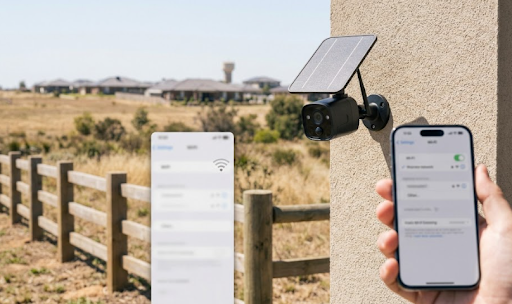

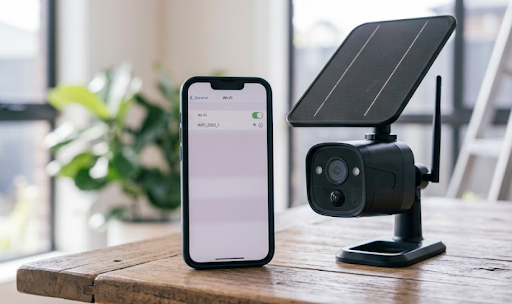
If your security camera won't connect to WiFi, the most common causes are a weak signal, an incorrect password, or a router broadcasting on a frequency band the camera can't detect. Most of these issues are fixable in a few minutes without needing to call a technician.
Before assuming the camera itself is faulty, it's worth walking through a few simple checks, since the problem is almost always something small and easy to fix.
Want to know exactly what to check first and how to avoid this happening again? Let's go through it step by step.
Why WiFi Connection Issues Happen So Often
WiFi connectivity problems are one of the most common frustrations homeowners run into when setting up a new camera, and it rarely has anything to do with the camera being defective. Most issues come down to a mismatch between what the router is broadcasting and what the camera is capable of detecting.
Many security cameras only connect to 2.4GHz networks, not 5GHz, because 2.4GHz travels further and penetrates walls better, which matters for outdoor cameras mounted away from the router. If a home router broadcasts both bands under the same network name, the camera might try to connect to the wrong one and simply fail, without ever giving a clear reason why.
Distance and interference play a role too. A camera mounted at the far end of a property, behind brick walls or metal siding, may technically be "in range" on paper but still receive too weak a signal to maintain a stable connection.
Common Reasons a Security Camera Won't Connect to WiFi
Here are the most frequent culprits, roughly in order of how often they cause problems.
Wrong WiFi band. As mentioned, many cameras only support 2.4GHz. If your router only shows a 5GHz option, or combines both bands into one network name, the camera may not be able to find a compatible signal at all.
Incorrect password entry. This sounds obvious, but mistyped passwords, especially ones with similar-looking characters like a lowercase "l" and the number "1," are one of the most common causes of failed connections.
Weak signal strength. Cameras placed too far from the router, or blocked by thick walls, metal roofing, or large appliances, often struggle to maintain a stable connection even if they connect briefly.
Router settings blocking new devices. Some routers have MAC address filtering or guest network restrictions enabled, which can silently block a new camera from joining the main network.
Outdated firmware. Occasionally, a camera's firmware is out of date and doesn't handle the router's security protocol correctly, which can cause repeated connection failures.
Too many devices on the network. Routers have a limit on simultaneous connections, and a household with many smart devices might be hitting that ceiling.
Quick Troubleshooting Steps
The table below outlines a simple order of operations to try when your security camera won't connect to WiFi.
| Step | What to Do | Why It Helps |
|---|---|---|
| 1. Check the WiFi band | Confirm your camera supports 2.4GHz and connect to that band specifically | Most connection failures come from band mismatches |
| 2. Re-enter the password | Type the password manually rather than copy-pasting | Avoids hidden characters or autocorrect errors |
| 3. Move closer to the router | Temporarily place the camera nearer the router during setup | Confirms whether signal strength is the issue |
| 4. Restart the router and camera | Power cycle both devices | Clears temporary connection glitches |
| 5. Check router device limits | Log into router settings to see connected device count | Identifies if the network is at capacity |
Working through these steps in order resolves the vast majority of connection issues without needing to replace any hardware.
If WiFi range continues to be a challenge even after troubleshooting, switching to a camera that doesn't depend on WiFi at all can eliminate the issue entirely. The Solar Camera Pro 2.0 4G uses cellular data instead, which sidesteps router range and band compatibility issues completely. For homes where WiFi range is generally solid, the Solar Camera Pro 3.0 WiFi is built for straightforward setup with strong signal handling designed to reduce these exact connection headaches.

Why, How, and Which Fix Actually Solves the Problem Long-Term
Why band mismatches cause so much confusion: Many newer routers automatically combine 2.4GHz and 5GHz under a single network name for convenience, which is great for phones and laptops that support both, but confusing for cameras that only support one. The camera doesn't fail loudly, it just can't find a compatible signal, which can look like a broader connectivity issue when it's really just a band setting.
How to fix it properly: Log into your router's admin settings and temporarily split the 2.4GHz and 5GHz networks into separate names, even if just during camera setup. Connect the camera specifically to the 2.4GHz network, then merge the bands back together afterward if preferred.
Which option is best long-term: For homes with spotty WiFi coverage in outdoor areas, particularly larger properties or those with cameras mounted far from the router, switching to a 4G cellular camera avoids the WiFi troubleshooting cycle altogether. For homes with strong, consistent WiFi throughout the property, a properly configured WiFi camera works just as reliably. KeldCo's lineup covers both scenarios, giving homeowners a subscription-free option regardless of which connectivity type suits their property best.
Homeowners dealing with persistent range issues across a larger property might also find it useful to browse the lte security camera collection for cellular-based alternatives that skip WiFi entirely.
Table: WiFi Camera vs 4G Camera When Connectivity Is a Recurring Problem
| Factor | WiFi Camera | 4G Cellular Camera |
|---|---|---|
| Setup dependency | Requires stable router signal | Requires cellular reception only |
| Best for | Homes with strong, consistent WiFi | Sheds, gates, remote areas, weak WiFi zones |
| Troubleshooting frequency | Higher if signal is weak | Lower, not affected by router settings |
| Ideal use case | Cameras near the house | Cameras far from the router |
If WiFi troubleshooting becomes a recurring hassle rather than a one-time fix, this table usually makes the better long-term choice fairly clear.

Things to Know When a Security Camera Won't Connect to WiFi
A few extra details can help prevent this issue from happening again after the initial fix.
Resetting the camera can help, but should be a later step, not the first one. Most cameras have a small reset button, often requiring a pin or paperclip to hold for several seconds, which restores factory settings. This is useful if the camera seems stuck in a broken connection state, but it also erases any saved configuration, so it's best tried after simpler fixes haven't worked.
Firmware updates matter more than people expect. Checking for a firmware update through the camera's app before troubleshooting extensively can sometimes resolve compatibility issues with newer router security protocols automatically.
Mesh WiFi systems can behave differently than single routers. Homes using mesh network systems sometimes experience cameras "bouncing" between nodes, which can cause intermittent drops that look like a connection failure but are actually a handoff issue between mesh points.
Outdoor placement affects signal more than indoor placement. Walls, metal siding, and distance all compound outdoors in ways that aren't always obvious indoors, which is part of why so many homeowners specifically searching security camera won't connect to WiFi are dealing with outdoor units rather than indoor ones.
Wrapping Up
To wrap things up, when a security camera won't connect to WiFi, the fix is almost always a band mismatch, password error, or weak signal, all of which are solvable within a few minutes using the steps above. For properties where WiFi range keeps causing issues, switching to a cellular-connected camera removes the problem entirely.
For more on choosing the right connectivity type from the start, this guide on security camera that connects to phone without wifi is a useful next read. It's also worth checking how to connect security camera to phone for setup tips, or wired vs wireless security cameras if you're reconsidering your overall setup.
Homeowners wanting a more reliable long-term solution might also browse the ip security camera collection for models designed with stronger connection handling built in.
Frequently Asked Questions
Why does it keep saying "unable to connect to WiFi"?
Usually a wrong password, weak signal, or the camera trying to connect to an unsupported band.
Why is my camera not detected by Wi-Fi?
The camera may only support 2.4GHz, which your router might not be broadcasting separately.
How do I connect my security camera to my network?
Use the camera's app, select your 2.4GHz network, and enter the password carefully.
What is a common fix for an IP camera that won't connect to Wi-Fi?
Splitting your router's 2.4GHz and 5GHz bands into separate network names usually fixes it.
Is there a reset button on security cameras?
Yes, most cameras have a small reset button to restore factory settings if needed.